
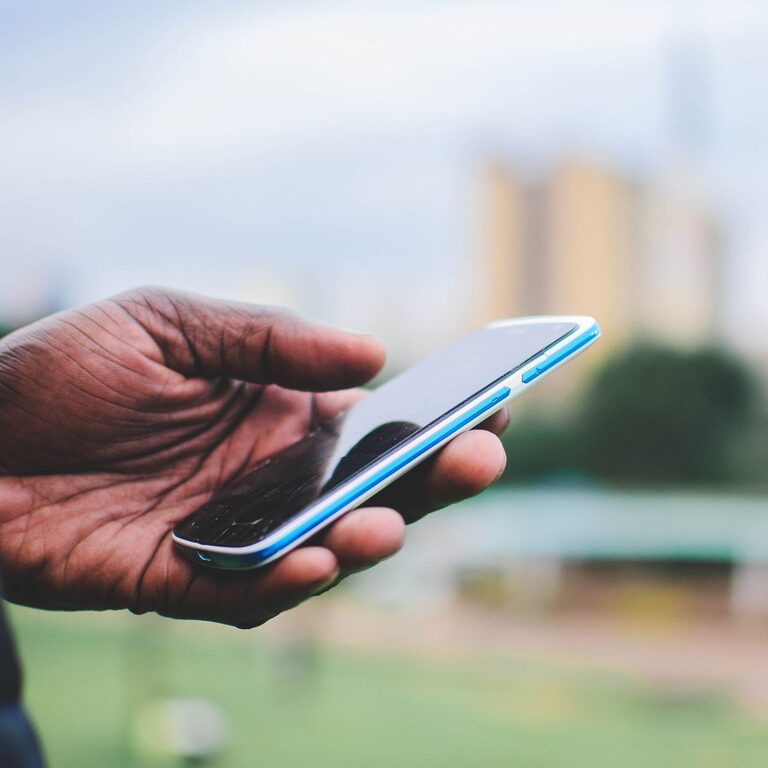
Your smartphone can do much more than make calls and send messages. A few simple settings can make common tasks faster, reduce distractions, improve readability, and help you find important information when you need it.
Many useful options are available on both iPhone and Android devices, although the names and locations may differ. Open the Settings app and use the search bar if you cannot find a specific feature.
1. Make Text Easier to Read
Small text can be uncomfortable, especially when reading messages, websites, or instructions. Adjusting the display size can make your phone easier to use throughout the day.
Look for settings such as:
– Text size: Increase or decrease the size of words on the screen.
– Display size: Enlarge icons, menus, and other screen elements.
– Bold text: Make letters stand out more clearly.
– High contrast: Improve the difference between text and its background.
– Dark mode: Use a darker background in low-light settings.
On an iPhone, these options are usually under Display and Brightness or Accessibility. On Android, look under Display or Accessibility.
Choose a size that feels comfortable without making it difficult to see buttons or fit information on the screen. You can also enable automatic brightness, which adjusts the screen based on the surrounding light.
2. Turn On Do Not Disturb
Notifications can interrupt work, meals, reading, and rest. Instead of silencing your phone manually every time, use Do Not Disturb or a similar focus feature.
You can usually:
– Turn it on from the quick settings panel.
– Create a schedule for certain times.
– Allow calls from selected contacts.
– Allow repeated calls in case someone needs to reach you.
– Choose whether notifications appear silently or stay hidden.
For example, you could schedule Do Not Disturb during your usual sleeping hours and create a separate focus setting for work or study. This keeps your phone useful without allowing every alert to demand attention.
Remember to review the allowed contacts and apps so important reminders or messages are handled the way you prefer.
3. Customize Quick Settings
Quick settings provide fast access to features you use often. They may include Wi-Fi, Bluetooth, the flashlight, screen rotation, mobile data, and airplane mode.
You can often rearrange these controls so your most-used options appear first. Remove buttons you rarely use and add helpful ones, such as:
– Screen recording
– Battery saver
– Personal hotspot
– Calculator
– Location services
– Nearby device sharing
– QR code scanning
On iPhone, you can customize the Control Center. On Android, open the quick settings panel and select the edit option, which may appear as a pencil icon or a menu button.
A well-organized panel saves time because you do not have to search through several menus for a feature you use regularly.
4. Use Voice Typing
Typing on a small screen is not always convenient. Voice typing lets you speak your message while your phone converts your words into text.
To use it, open a message, note, email, or search field and tap the microphone button on the keyboard. Speak clearly and review the result before sending or saving it.
Voice typing works well for:
– Short messages
– Shopping lists
– Calendar notes
– Quick reminders
– Draft ideas
– Search phrases
Punctuation may need to be added manually, depending on your phone and keyboard. It is also a good idea to check names, addresses, and numbers because these details can be transcribed incorrectly.
5. Set Up Keyboard Shortcuts
Keyboard shortcuts can save time when you frequently type the same words or phrases. For example, you could create a shortcut that expands into your email address, home address, or a common reply.
On iPhone, look for Text Replacement in the keyboard settings. Android keyboards often include a Personal dictionary or text shortcut feature.
Good shortcut ideas include:
– Your email address
– A mailing address
– A website you share often
– A standard work response
– A phrase such as “I will get back to you soon”
– A frequently used sign-off
Keep shortcuts easy to remember and avoid using them for sensitive information such as passwords.
6. Improve Battery Life
Battery settings can help your phone last longer between charges. Start by checking which apps use the most power. If an app is using more battery than expected, you may be able to limit its background activity or adjust its notification settings.
Helpful options include:
– Battery saver or low power mode: Reduces certain background activities.
– Automatic screen timeout: Turns off the display when you stop using it.
– Lower screen brightness: Uses less power.
– Background app refresh controls: Reduces how often apps update when not open.
– Optimized charging: Helps manage charging patterns on supported devices.
You do not need to turn off every convenient feature. Instead, focus on settings that match your habits. For instance, an app that you rarely use may not need to refresh in the background.
7. Make Your Phone Easier to Find
Misplacing a phone is frustrating, but built-in tracking tools can help locate it. Turn on the device-finding service linked to your phone account and make sure location services are available when needed.
You can also:
– Add an emergency contact or owner message to the lock screen.
– Enable a sound that helps you locate the phone nearby.
– Keep a recent backup of important information.
– Use a strong screen lock, such as a passcode or biometric option.
Check these settings before you need them. Device-finding tools are most useful when they are enabled in advance and connected to the correct account.
8. Organize Notifications
Not every app needs permission to send alerts. Too many notifications can make important reminders easy to miss.
Review your notification settings and turn off alerts that are not useful. For other apps, you may be able to choose between banners, sounds, badges, or silent notifications.
A simple system might include:
– Sounds for calls and messages
– Silent alerts for social media
– Reminders for calendars and tasks
– No notifications from apps you rarely open
You can also group notifications or use notification summaries, depending on your device. This lets you review updates at convenient times instead of responding to them immediately.
9. Add Useful Home Screen Tools
Widgets and home screen shortcuts can place useful information where you can see it quickly. Common choices include the weather, calendar, reminders, clock, battery level, and music controls.
Try adding only the tools you use regularly. A crowded home screen can be as distracting as a cluttered desk.
You can also group related apps into folders, such as:
– Travel
– Work
– Shopping
– Photos
– Utilities
– Entertainment
Keep your most important apps on the first screen and move less-used apps to later pages or the app library.
10. Review Settings Regularly
Smartphone settings often change after software updates or when you install new apps. Take a few minutes every few months to review notifications, permissions, storage, and battery use.
Remove apps you no longer need, check which apps can access your location, and make sure your backup settings match your preferences. These small maintenance steps can keep your phone organized and easier to use.
The best settings are the ones that fit your routine. Start with one or two changes, use them for a few days, and adjust them if necessary. Over time, these simple improvements can make everyday smartphone tasks faster, calmer, and more convenient.